
Notifications
The bell in the top navigation bar keeps you up to date with activity in WiseParts. Notifications also collect in the Inbox, where you can read them in full.
The Notification Bell
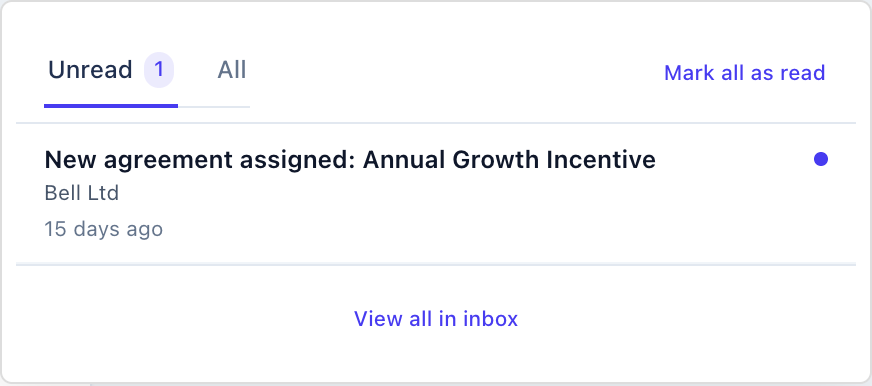
The bell shows how many notifications are unread. Select it to open the notification menu.
- Unread and All switch between unread items and every recent notification.
- Mark all as read clears the unread count.
- Hover over an item to reveal Mark as read and Delete.
- Select an item to open it in the Inbox, where it is marked as read.
- View all in inbox opens the full list.
Each item shows a title and when it arrived, plus a short subtitle when there is one. Some items include a Download link for a file.
Export Progress
While an export runs, the bell becomes a progress ring around a download icon. The ring follows all of your running exports together and spins when the total is not known.
Starting an export opens the menu so you can follow it. The menu lists every running export and the ones that finished recently, with their progress, status, and a Download button when a file is ready. Select Hide to clear finished exports, or dismiss one on its own.
When an export finishes, the ring shows a green check. If it fails, the ring shows a red alert. Both last a few seconds.
What You Receive
Notifications cover activity such as:
- Task assignments, closures, and changes
- Mentions in notes and records
- Reports shared with you
- Import and export results
- Agreement assignments
- Billing and credit alerts
Browser Notifications
Open your Profile and select the Notifications tab to receive desktop alerts while WiseParts is in another tab or window.
- Enable browser notifications turns desktop notifications on. Your browser asks for permission the first time.
- Conversation assigned to me alerts you when a conversation is assigned to you.
- New conversation messages alerts you to new messages in your conversations.
The last two options appear only after browser notifications are on. If your browser blocks notifications, the tab shows a warning and you need to allow them in your browser settings.
This tab has no email settings. Some notifications, such as task assignments, shared reports, and export links, are also sent by email.